Internet & ISPs
How does IPTV work? A live channel's journey from the source to your TV
By the IPTV Gold editorial team · How we write and test
How does IPTV work? Last updated:
IPTV sends TV as data over an internet connection instead of cable or satellite. Each live channel is received, compressed with a codec such as H.264 or HEVC, cut into a stream format like HLS, delivered through servers and your internet provider, then buffered and decoded by an app on your TV or streaming device.
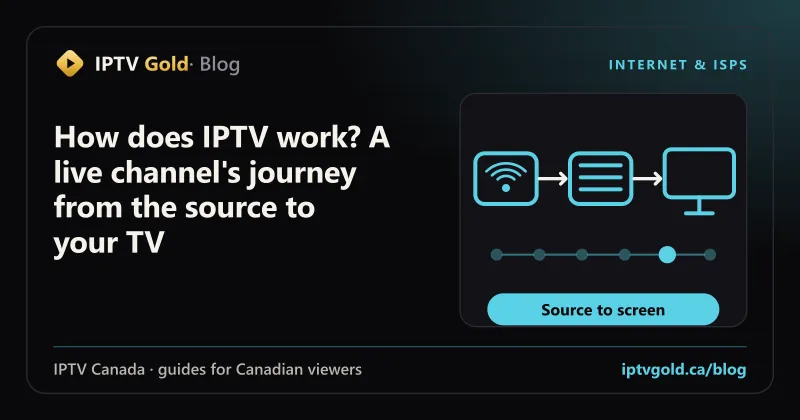
Press a channel number on your remote and, a second or two later, a live hockey game fills the screen. With cable, that picture came down a coaxial line your provider controlled from end to end. With IPTV, it travelled through encoders, servers, a content delivery network, your internet provider, your router and a small app before it reached your TV, and it did that again for every second of the broadcast.
Understanding that journey isn’t required to enjoy IPTV, but it explains nearly everything you’ll ever wonder about it. Why a stream is a few seconds behind your neighbour’s cable box. Why it buffers at 8 pm and not at 2 pm. Why one app shows a guide and catch-up while another shows a bare list. Why a 4K channel needs a better connection and a better streaming stick.
This article follows a single live channel from the broadcast to your screen, one stage at a time, in plain language. It applies to any IPTV Canada service that streams over the open internet, including ours, and it points to the deeper guides on this site wherever a stage deserves its own article.
IPTV in one minute
IPTV stands for Internet Protocol Television: TV delivered as data packets over an IP network, the same kind of network that carries web pages and video calls, instead of as a radio-frequency signal over coaxial cable or a satellite link.
In Canada you’ll meet two kinds:
- Managed IPTV. Services like Bell Fibe TV and Telus Optik TV run over the provider’s own network, straight to a set-top box the provider supplies. The TV traffic stays inside one company’s infrastructure from start to finish.
- Internet IPTV. Independent services stream over the public internet to apps on devices you already own: Fire TV sticks, smart TVs, Android boxes, phones and computers. This is what most people mean when they search for IPTV, and it’s how IPTV Gold works.
Both use the same core ideas. The difference is who controls the network in the middle, and that difference shapes everything from equipment to contracts.
| Cable TV | Satellite TV | Managed IPTV (e.g. Fibe, Optik) | Internet IPTV (e.g. IPTV Gold) | |
|---|---|---|---|---|
| How the signal arrives | Coaxial cable from the provider | Dish on your roof | The provider’s own IP network | Any internet connection |
| Equipment | Rented receiver | Dish and receiver | Provider’s set-top box | Your own device and an app |
| Tied to one internet provider | Yes | No | Yes | No |
| Works away from home | Only through the provider’s app | No | Only through the provider’s app | Yes, wherever there’s internet |
| Typical commitment | Contract or bundle | Contract | Contract or bundle | Prepaid plan, no contract |
The journey of a live channel, stage by stage
Every live channel on an internet IPTV service passes through six stages. Problems at any one of them show up on your screen in a predictable way, which is why it’s worth knowing the order.
| Stage | What happens | If it goes wrong, you see |
|---|---|---|
| 1. Source | The channel’s feed is received | One channel down or frozen for everyone |
| 2. Encoding | The feed is compressed into a digital video format | Blocky picture, poor motion, wrong aspect ratio |
| 3. Packaging | The video is cut into a stream format apps understand | Channel won’t start, or starts and stops |
| 4. Distribution | Servers and edge locations deliver it to viewers | Freezes on busy nights, slow channel changes |
| 5. The last mile | Your ISP and home network carry it to the device | Buffering in one room, worse in the evening |
| 6. Playback | The app buffers, decodes and displays it | Stutter, black screen, audio out of sync |
Stage 1: the source
Every channel starts as a feed received by the provider. At this point it’s high-quality video, much larger than anything you’d want to send over a home internet connection. If a source fails, the channel stops for every viewer at the same moment, which is why good services keep backup sources ready for popular channels and big events.
Stage 2: encoding
Raw video is enormous. Encoding compresses it with a codec, a set of rules for describing pictures efficiently. Two codecs dominate IPTV:
- H.264 (AVC): the universal format. Almost every device made in the last decade decodes it in hardware.
- H.265 (HEVC): newer and more efficient. As a rule of thumb, it needs roughly 30 to 50 percent less bitrate than H.264 for similar picture quality, which is why 4K channels usually use it.
Encoding also sets the bitrate: how many megabits per second the stream uses. A higher bitrate keeps fast motion sharp, which matters most for sports. Some services offer several versions of the same channel at different bitrates, so viewers on slower connections can choose a lighter one.
| Quality | Resolution | Typical bitrate | Data per hour (about 0.45 GB per Mbps) |
|---|---|---|---|
| SD | 480p or 576p | 1.5 to 3 Mbps | Up to about 1.35 GB |
| HD | 720p | 3 to 5 Mbps | Up to about 2.25 GB |
| Full HD | 1080p | 5 to 8 Mbps | Up to about 3.6 GB |
| 4K | 2160p, usually HEVC | 15 to 25 Mbps | Up to about 11.25 GB |
Your streaming device has to decode whatever codec the channel uses. That’s why a 4K HEVC channel plays smoothly on a Fire TV Stick 4K Max but not on an older stick, however fast your internet is. Our guide to hardware vs software decoding explains how to set your app for each device.
Stage 3: packaging
Compressed video still has to be wrapped in a format a player can request over the internet. Internet IPTV mostly uses two:
- HLS (HTTP Live Streaming). The stream is cut into short segments, usually a few seconds each, listed in a small playlist file the player refreshes continuously. HLS works through almost any network, scales well and is supported everywhere, at the cost of a little extra delay.
- MPEG-TS over HTTP. A continuous transport stream sent over an ordinary web connection. It’s simple and typically has slightly lower delay, and it’s the classic format behind many IPTV apps.
You’ll sometimes see the file extensions in error messages or playlists: .m3u8 for HLS playlists and .ts for transport-stream segments. Both travel over standard HTTP or HTTPS, the same protocols as a web page, which is why IPTV works on almost any connection without special network settings.
| Format | How it’s delivered | Delay behind live | Where you’ll meet it |
|---|---|---|---|
| HLS | Short segments plus a refreshing playlist | Typically higher, often tens of seconds | Most apps, Apple devices, browsers |
| MPEG-TS over HTTP | One continuous stream | Typically lower | Many IPTV apps, MAG boxes |
| MPEG-DASH | Segments plus a manifest, similar to HLS | Similar to HLS | Some apps and web players |
| RTMP | Older streaming protocol | Low | Mostly used to send feeds to servers, rarely for viewing |
Stage 4: distribution
Here’s the part that surprises most people. With internet IPTV, every viewer gets their own copy of the stream. If 10,000 people watch the same Full HD channel at 8 Mbps, the service has to deliver 10,000 × 8 Mbps = 80,000 Mbps, or 80 Gbps, at the same moment.
That’s very different from cable, where one signal on the line serves every home on it. It’s why distribution matters so much:
- Origin servers hold the packaged streams.
- Edge servers or a content delivery network (CDN) copy them closer to viewers, so each viewer connects to a nearby point instead of one central machine.
- Peering and transit links connect those servers to Canadian internet providers. A congested link between two networks can slow a stream even when your own line and the servers are fine.
Distribution is also why big game nights are the real test of any service. Load jumps at the same minute across the whole country. Our article on why IPTV buffers at night shows how to tell distribution problems from problems at home, and the guide to Canadian vs overseas IPTV servers explains why network distance matters.
Stage 5: the last mile
The stream now crosses your internet provider’s network and enters your home through the modem or gateway, then reaches your device over Ethernet or Wi-Fi. For most Canadian households, this is where problems actually happen:
- Wi-Fi in a basement, through concrete or across a crowded condo building.
- Evening congestion in the neighbourhood network, when every home is streaming at once.
- The household itself, when a game console downloads an update or someone starts a video call in the next room.
Your plan’s advertised speed only matters if it reaches the device. A 500 Mbps plan can still buffer a 25 Mbps 4K stream if the TV gets a weak 2.4 GHz Wi-Fi signal. Our guide to internet speed for 4K IPTV shows how to test properly, on the device and at the right time of day.
Stage 6: playback
Finally, the app on your device does three things at once:
- Buffers a few seconds of video ahead of what you’re watching, to absorb small hiccups in delivery.
- Decodes the compressed video, ideally with the device’s hardware decoder.
- Displays the picture and syncs the audio, adjusting to your TV’s frame rate and dynamic range if the app supports it.
Most playback complaints come from one of those three. A buffer that’s too small causes brief freezes on Wi-Fi, a wrong decoder setting causes black screens or stutter, and audio passthrough to a soundbar can cause sync problems. The IPTV buffer size guide covers the first, and the black screen and no sound guide covers the others.
How your app finds the channels: logins explained
Before any of the six stages matter, your app has to know which channels exist and where to request them. That’s the job of the login. There are three types, and every IPTV Gold account includes the first two, plus the third for MAG boxes.
| Login type | What you enter | What the app receives | Best for |
|---|---|---|---|
| Xtream Codes | Server address, username, password | Live channels, movies, series, guide and catch-up details, organised by category | Most apps: TiviMate, IPTV Smarters, IBO Player |
| M3U playlist | One long link | A text list of channels and stream addresses, optionally with guide and catch-up tags | VLC, Kodi, older smart TV apps |
| MAG portal | A portal address, after registering the box’s MAC address | A complete TV interface from the portal | MAG boxes and Formuler in portal mode |
The Xtream Codes login works like a small catalogue the app can query: it asks for the list of categories, then the channels in each, then the on-demand library. An M3U playlist is simpler: a text file with one entry per channel. A MAG portal goes further and supplies the whole interface, which is why MAG boxes need no app.
If a login won’t work, the cause is almost always a typo in the server address, a missing port number or case-sensitive credentials. The IPTV login problems guide walks through each fix.
Where the TV guide comes from
The program guide isn’t part of the video stream. It’s a separate data file, usually in a format called XMLTV, listing what airs on each channel and when. Your app downloads it, then matches each guide entry to a channel using an ID.
That separation explains three common experiences:
- A channel plays but shows “no information”. The video works, but that channel’s guide ID doesn’t match the guide data.
- The whole guide is an hour off. A time-zone or daylight-saving setting in the app or device is wrong.
- The guide is empty right after setup. The first download of a large guide can take a minute or two.
The guide also drives catch-up: when you pick a show that aired yesterday, the app uses the guide’s start time to request the right part of the archive. Our articles on fixing an IPTV guide that won’t update and IPTV catch-up TV go deeper into both.
Why IPTV runs a little behind live
If your neighbour has cable and you both watch the same game, you’ll hear them cheer a few seconds before you see the goal. That delay, called latency, comes from the stages above adding up:
- Encoding takes a moment to compress each section of video.
- Segment-based formats like HLS wait for a segment to be complete before sending it.
- The player keeps a buffer of several seconds before it starts, so small delivery hiccups don’t freeze the picture.
Depending on the format and the app’s buffer, internet IPTV commonly runs somewhere from several seconds to around half a minute behind the broadcast. A bigger buffer adds delay but reduces freezing, so there’s always a trade-off.
Practical tips for live sports:
- Turn off score notifications on your phone during the game, or you’ll know the result before you see it.
- Don’t raise the buffer more than you need. If your stream is stable, a smaller buffer keeps you closer to live.
- Watching with friends in another city on a different service? Expect to be slightly out of sync, and keep the group chat closed.
What happens in the second after you change channel
Channel changes are where IPTV feels most different from cable. On cable, every channel is already arriving at your receiver, so switching is close to instant. With IPTV, the app has to start a brand-new stream each time. Here’s what happens, in order:
- You press the button. The app looks up the new channel’s stream address from the channel list it downloaded when you signed in.
- The app requests the stream. The request goes over your home network and internet connection to the service’s servers, which check your login and the number of streams already playing on your account.
- The nearest server answers. An edge server or CDN node starts sending the stream, or for HLS, the playlist and the first segment.
- The buffer fills. The app waits until it has a few seconds of video in hand before starting playback, so the first seconds don’t freeze.
- The decoder starts. Video decoding can only begin at a full reference frame, called a keyframe. If the stream’s keyframes are a couple of seconds apart, the app may wait for the next one.
- The picture appears. If the app matches your TV’s frame rate, the TV may briefly blank while it switches modes.
On a good connection, the whole sequence usually takes around one to three seconds. Several things stretch it:
| What slows channel changes | Why | What helps |
|---|---|---|
| A large playback buffer | The app waits longer before it starts | Use the smallest buffer that keeps your stream stable |
| Frame-rate matching on the TV | The TV blanks while it changes display mode | Accept it for smoother motion, or turn matching off if quick zapping matters more |
| Wi-Fi with weak signal | The first seconds of data arrive slowly | Ethernet, or a mesh node near the TV |
| Long keyframe intervals on a channel | The decoder waits for a starting frame | Nothing on your side; it varies by channel |
| An overloaded streaming stick | The app reacts slowly to the remote | Clear the cache, close background apps, or upgrade the device |
If channel changes on a Fire TV feel sluggish, the Firestick slowdown guide covers the cleanup routine that usually brings them back up to speed.
What happens on a busy night
Saturday night in hockey season shows how the whole chain behaves under pressure. Three things happen at once:
- Demand spikes in minutes. Thousands of viewers press play for the same few channels at puck drop, so distribution has to deliver far more copies of the same streams.
- Home networks get busier. Everyone in the house is online, and so is every neighbour.
- ISP networks hit their evening peak. Shared links in the neighbourhood and between networks are at their busiest.
A well-run service plans for the first: spare capacity, edge distribution and backup streams for major events, so you can switch if one feed struggles. You control the second and partly the third: an Ethernet cable to the main TV, pausing big downloads during the game, and choosing Full HD over 4K on a weaker connection. Our guide to smooth NHL streams on game night has a full pre-game checklist.
What you need at home
Putting it together, a reliable IPTV setup needs four things:
- An internet connection with a steady 10 Mbps or so per HD screen and around 25 Mbps per 4K screen, measured on the device you watch on.
- A capable device: a recent Fire TV Stick, Android TV box, Apple TV, smart TV or MAG box, with hardware decoding for the channels you watch.
- A good player app that supports the guide, catch-up and the login type you use. The setup guides recommend one per device.
- A login from a service with Canadian and international channels, a reliable guide and support when something goes wrong.
| Household | Streams at once | Internet speed to have | Typical starting device |
|---|---|---|---|
| One TV, mostly Full HD | 1 | 15 Mbps or more | Fire TV Stick 4K or a recent smart TV |
| One 4K TV | 1 | 25 Mbps or more | Fire TV Stick 4K Max, Apple TV 4K or NVIDIA Shield |
| Living room 4K plus a bedroom TV | 2 | 50 Mbps or more | One 4K-capable device plus any second device |
| Three screens at peak times | 3 | 40 to 75 Mbps, depending on quality | Wired main TV, Wi-Fi for the rest |
IPTV Gold works with any Canadian internet provider and streams 56,000+ live channels plus 120,000+ movies and shows on demand, for 1 to 3 screens at once. Setup takes about 5 minutes on most devices.
Five common IPTV myths
“IPTV needs a satellite dish or special cabling.” No. Internet IPTV uses the same connection as your web browsing. Nothing is installed on the roof or in the walls.
“IPTV uses a lot of upload speed.” Watching is almost entirely download. Your upload speed matters for video calls and backups, not for receiving a stream.
“A faster internet plan always fixes buffering.” Only if your plan was the bottleneck. Most buffering comes from Wi-Fi, evening congestion or device limits, and a faster plan doesn’t change those.
“A VPN makes IPTV faster.” A VPN adds an extra hop and encryption overhead. It can occasionally route around a congested link, but more often it adds delay. Our article on VPNs and IPTV in Canada explains when it helps and when it hurts.
“4K is always better.” Only if your TV, device and connection all support it. A stable Full HD stream looks better than a 4K stream that keeps buffering.
Managed or internet IPTV: which suits you?
If you already have Bell Fibe TV or Telus Optik TV, you’ve been using IPTV for years, just in its managed form. Moving to an internet IPTV service mostly changes who you pay and what equipment you use, not the basic technology.
Managed IPTV makes sense if you want a single bill, a provider-supplied box and the channel packages the provider sells. Internet IPTV makes sense if you want to keep the internet provider you like, use devices you already own, watch away from home and avoid long contracts. Our IPTV vs cable comparison sets out the yearly costs side by side.
When you compare internet IPTV services, the six stages give you a checklist. Ask about backup streams (stage 1), 4K and codec support (stage 2), the login types offered (stage 3), how the service handles busy nights (stage 4), and what support does when the problem is in your home (stages 5 and 6). Our guide to the best IPTV Canada services turns that into five practical tests, and the Canadian IPTV channels page shows how English, French and sports channels are organised.
Try the whole chain on your own TV
Reading about the six stages is one thing; seeing them work on your own connection is another. IPTV Gold’s 24-hour free trial gives you the full lineup with no card, so you can test a 4K channel, a sports channel on a busy evening, the guide and catch-up on the TV you actually use. If you decide to stay, an IPTV subscription is paid once in CAD, starting at $17, and the pricing page compares every plan length and device count. Every plan has a 7-day money-back guarantee, and support answers 24/7 in English and French.
If any of the terms in this article are new, the IPTV glossary explains them in plain language.
Key takeaways
- IPTV is TV delivered as data over an IP network. In Canada it comes as managed IPTV (Fibe, Optik) or internet IPTV, which works on any connection and your own devices.
- Every live channel passes through six stages: source, encoding, packaging, distribution, the last mile and playback. Knowing them makes troubleshooting fast.
- Codecs and bitrate decide picture quality and data use. 4K usually means HEVC at around 25 Mbps, about 11 GB an hour.
- Each viewer gets their own copy of the stream, which is why big game nights test a service’s distribution.
- Most buffering happens in the last mile, at home or in the neighbourhood network, not at the source.
- IPTV runs a little behind broadcast TV because of encoding, segments and the player’s buffer.
More in internet & isps
- IPTV Buffering at Night: Finding the Slowdown on Canadian Connections
- Choosing the Best DNS for IPTV: What It Fixes and How to Change It
- How to Fix NHL Stream Buffering Before and During the Big Game
- Testing Your Internet Speed for 4K IPTV the Right Way
- VPN for IPTV Canada Viewers: Speed, Privacy and When to Skip It
- Wi-Fi vs Ethernet for IPTV in Basements, Condos and Older Canadian Homes
- How to Make IPTV Work on Rural Internet in Canada, From Starlink to DSL
Quick answers
Is IPTV the same as streaming services like Netflix?
They use similar technology but deliver different things. Netflix-style services stream an on-demand library. IPTV services carry live TV channels with a program guide, usually alongside on-demand movies and series. Both send video over the internet to an app, so the same rules about speed, Wi-Fi and devices apply to both.
Does IPTV work with any internet provider in Canada?
Yes. Internet IPTV uses ordinary web connections, so it works with Bell, Rogers, Telus, Vidéotron, Cogeco and smaller providers alike. What matters is a stable connection of roughly 10 Mbps per HD screen or 25 Mbps for 4K, measured on the device you watch on. Whether you use Wi-Fi or Ethernet usually matters more than the plan.
Why is my IPTV stream a few seconds behind cable?
Encoding, segment-based formats and the player's buffer each add a little delay, so internet IPTV usually runs from several seconds to around half a minute behind the broadcast. A smaller buffer brings you closer to live but can freeze on a weak connection. Turn off score notifications during games to avoid spoilers.
Keep reading
Watch tonight. Decide tomorrow.
Take all 56,000+ channels for a 24-hour test drive on your own TV and internet. No card, no payment. Plans start at $17 a month in CAD, with a 7-day money-back guarantee.
7-day refund 24/7 Live Chat help Priced in CAD